Enable dark mode on static jekyll site without writing CSS
Goal & approach
My blog site was originally designed based on default jekyll theme having a light color scheme. My goal was to add a dark mode without writing additional CSS, something quick and easy. Although it’s straightforward to conditionally apply styles with CSS @media at-rule, I’ve opted to use an existing JavaScript library called darkreader to switch the sites color scheme dynamically. If darkreader does a good enough job of dynamically styling the site for dark mode, then this avoids the need to write any alternative CSS!
I would like to detect the client browser’s color scheme preference on the first visit and enable it automatically, as well as provide a toggle for visitors to switch color modes on-demand.
Customizing jekyll
I will need to include the darkreader Javascript as well as implement my own scripting for toggling the color scheme and detecting browser preference, which means I need to modify the existing Jekyll theme defaults. Overriding theme defaults is described in detail in the jekyll docs.
For my purposes, I will be customizing 3 files:
_includes/head.html: to include external JS and CSS resources_includes/header.html: to place the toggle component in the HTML layout_includes/footer.html: to call functions for auto detection and toggling
Set up client-side resources
First I must include the necessary scripts and CSS client side.
Resource: darkreader
to dynamically change the site to a dark-mode color scheme
Resource: Font Awesome
to use free dark mode button css and icons
I will also use my own JS file to store some functions I will need, located in my sites home directory under assets/js/color-scheme.js
Modify _includes/head.html and add the following:
<link rel="stylesheet" href="https://use.fontawesome.com/releases/v5.0.7/css/all.css">
<script src="https://cdn.jsdelivr.net/npm/darkreader@4.9.84/darkreader.min.js"></script>
<script src="/assets/js/color-scheme.js"></script>
This will allow me to use the moon and sun buttons from Font Awesome as well as leverage the dynamic dark mode functionality provided by darkreader to toggle on or off.
Add toggle to site header
Modify _includes/header.html and add the following to your HTML layout
<span>
  <a class="dark-mode-button"  style="padding-left: 25px; text-decoration: none; cursor: pointer;">
    <i id="icon-dark" class="fa fa-moon"></i>
    <i id="icon-light" class="fa fa-sun"></i>
  </a>
</span>
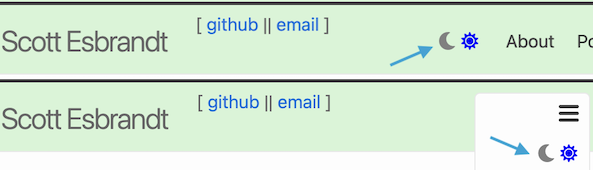
This will display the moon and sun icons next to one another.
Enable auto-detect and toggle functionality
Now that I have the visual elements in place and the external resources set up, I need to make it functional.
Modify _includes/footer.html and add the following at the bottom before the closing </footer> tag.
<script>

    const iconDark = document.getElementById('icon-dark');
    const iconLight = document.getElementById('icon-light');
    const darkModeButton = document.getElementsByClassName('dark-mode-button')[0]
    const darkModePreferred = (window.matchMedia && window.matchMedia('(prefers-color-scheme: dark)').matches)

    window.onload = function() {
      checkDarkMode()
    }

    darkModeButton.onclick = function() {
      toggleDarkMode()
    }

</script>
Note: checkDarkMode() and toggleDarkMode() are defined in the following step.
Rather than include the code below directly in _includes/footer.html, I chose to put them in a separate file
to keep things tidy.
Place the following code to assets/js/color-scheme.js
// Setup darkreader for CORS
DarkReader.setFetchMethod(url => {
  let headers = new Headers()
  headers.append('Access-Control-Allow-Origin', '*')

  return window.fetch(url, {
    headers,
    mode: 'no-cors',
  })
})

function darkModeSelected() {
  let darkModeSelected = localStorage.getItem('darkMode');

  if (darkModeSelected === "false"){
    return false;
  }
  if (darkModeSelected === "true") {
    return true;
  }
  return darkModeSelected;
}

function darkModeEnabled() {
  if (darkModeSelected() === true) {
    return true;
  }
  if (darkModeSelected() === null && darkModePreferred === true) {
    return true;
  }
  return false;
}

// set color mode and icons on page load
function checkDarkMode() {
  if (darkModeEnabled()) {
    DarkReader.enable();
  } else {
    DarkReader.disable();
  }

  if (darkModeSelected() === true) {
    setIconsDarkModeOn();
  } else if (darkModeSelected() === false) {
    setIconsDarkModeOff();
  }
}

function toggleDarkMode() {
  if (darkModeEnabled()) {
    disableDarkMode();
  } else {
    enableDarkMode();
  }
}

function enableDarkMode() {
  DarkReader.enable();
  localStorage.setItem('darkMode', 'true');
  setIconsDarkModeOn();
}

function disableDarkMode() {
  DarkReader.disable();
  localStorage.setItem('darkMode', 'false');
  setIconsDarkModeOff();
}

function setIconsDarkModeOn() {
  iconLight.style.color = "grey";
  iconDark.style.color = "blue";
}

function setIconsDarkModeOff() {
  iconDark.style.color = "grey";
  iconLight.style.color = "blue";
}
localStorage is used to remember the visitor’s preference for the site if they have overrided the
detected browser preference.
Finished product
This site implements these instructions, with the color scheme toggle atop of the page
Find the relevant modified source code files here: